Smarter logic, tidy node graphs, and ARthur, your built-in helper
4 min read
The logic editor is where an AR Works project comes alive: tap the robot and it waves, grab the ball and a sound plays. This update gives it a big step up. Your logic can now read what is happening in the scene and change how things look, you can wrap any piece of logic into a reusable group, and a messy graph tidies itself with one click.
And if you ever get stuck, there is someone new to ask: ARthur, the helper built into AR Works.
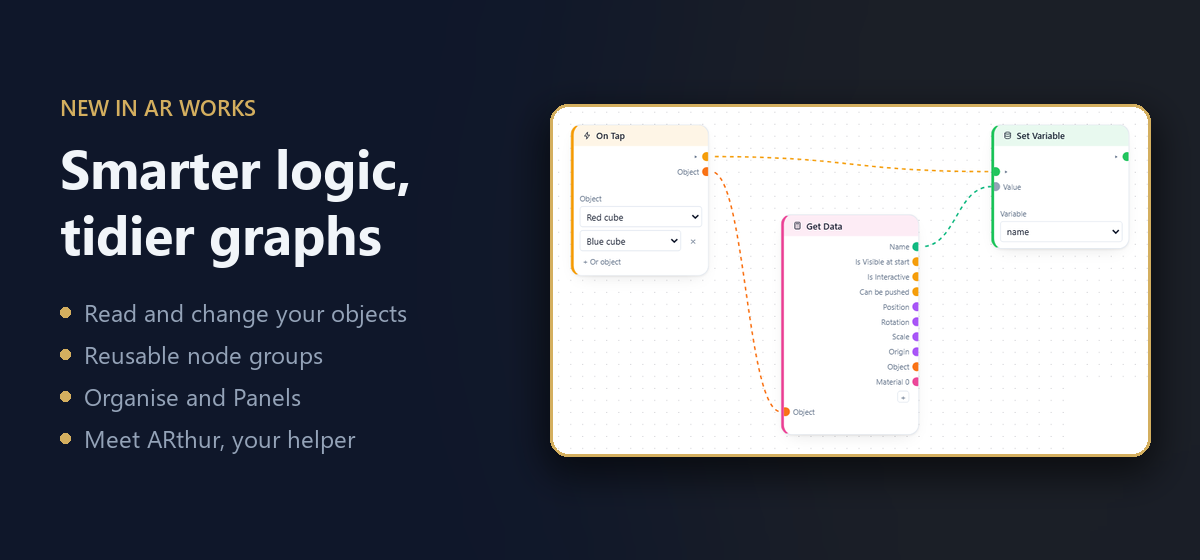
Read what is happening in your scene
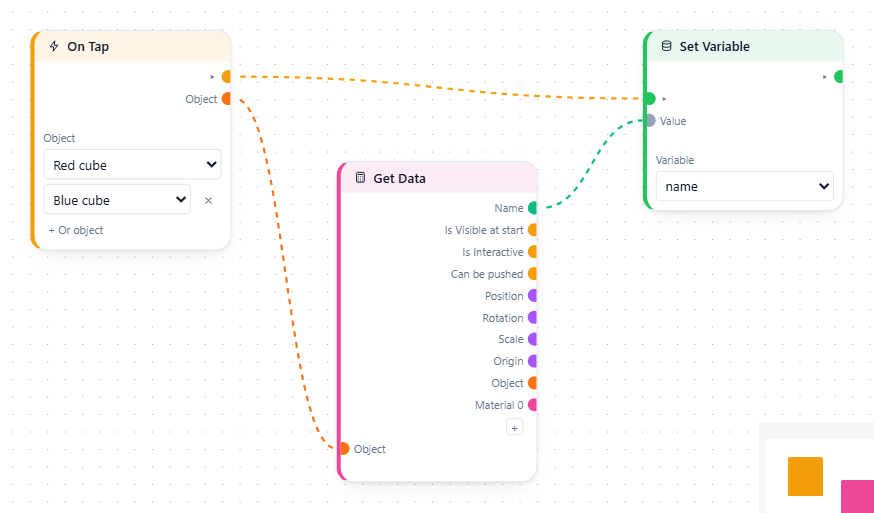
Get Data reads an object as the scene runs: its name, where it is, how it is turned and how big it is, whether it can be grabbed or pushed, and the materials it wears. Vector3 to XYZ splits a position into X, Y and Z, and XYZ to Vector3 puts three numbers back together. Variables can hold a whole Vector3 too, so "where was the ball when it was dropped?" is one wire away.
Events now tell you which object fired them. Add more objects to an event with + Or object, then plug its Object output into Get Data: tap any of the nine planets and you get the name of the one you tapped. Every node that works on an object has an Object output, so you can chain them freely.
Change how things look
Get Material reads the material in any slot of an object, and Set Material swaps it while the scene runs: turn the traffic light green, paint the planet you tapped, or copy one object's look onto another. Reset Object puts the original materials back.
Reusable node groups
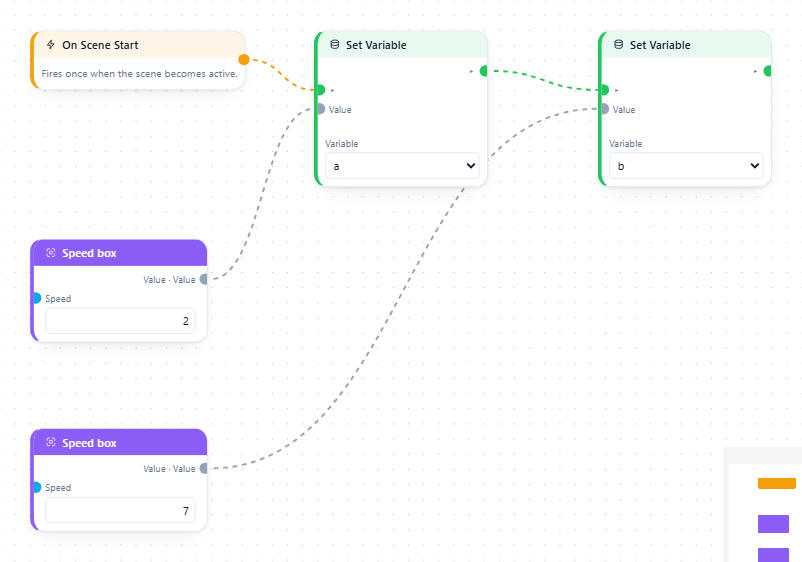
Select some nodes and press Ctrl+G. They become one tidy group node with the open inputs and outputs on its edges. Press Tab to go inside, Esc to come back out, and nest groups inside groups. Every group you make appears in the Groups section of the node list, ready to use again.
Add an Input node inside a group and it becomes a named input on the group, with its own value for each copy. Build a "Spin" group once, then give each copy its own speed.
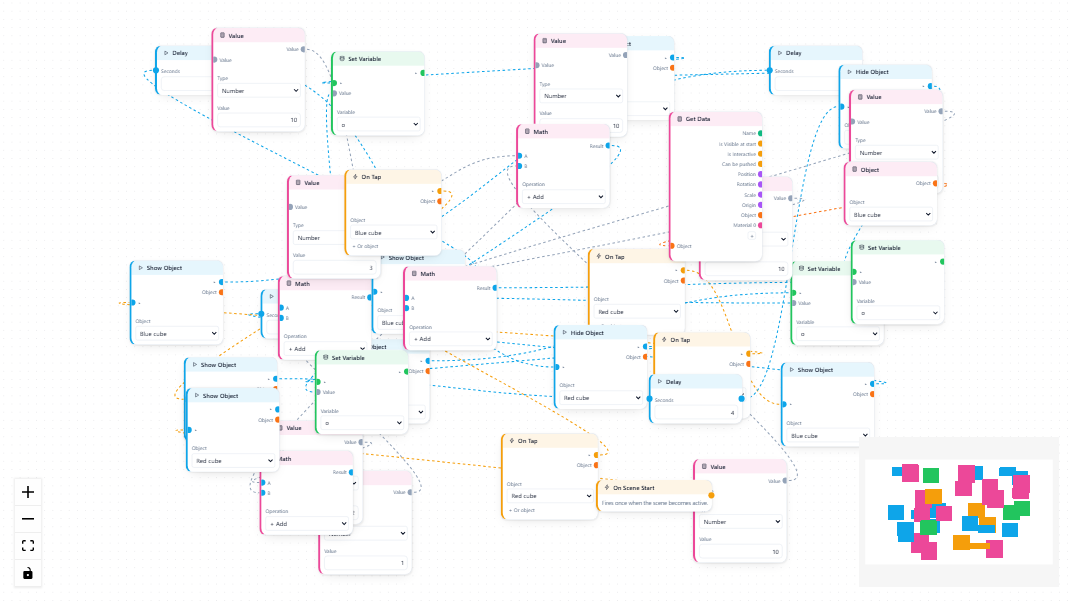
Tidy graphs in one click
Right-click empty space and choose Organise. Nodes line up left to right in the order your logic runs, with no overlaps and as few crossing wires as possible. Press Ctrl+P to put the selected nodes in a coloured Panel, then drag the panel to move them all at once. Both work in the Materials editor too.
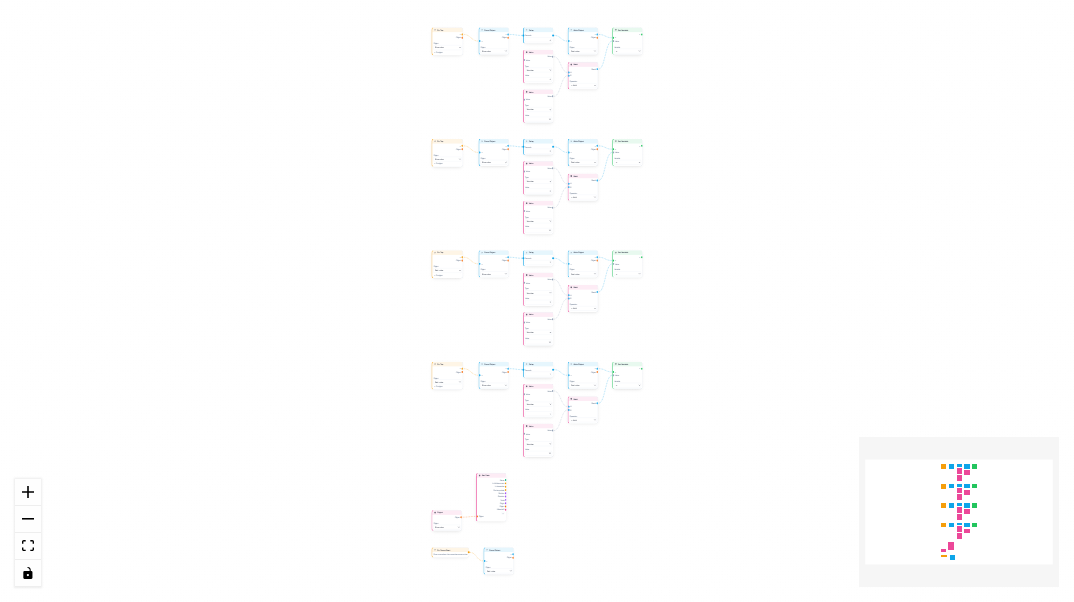
Building is quicker as well: B for box select, Ctrl+C and Ctrl+V to copy and paste nodes, Shift+A to search for a node at the mouse, drop a wire on empty space to add a node that fits, and drop a node onto a wire to slot it in. You can also zoom out far enough to see every node at once.
Meet ARthur, your built-in helper
Look for the little robot head in the corner of the page. Click it and ARthur opens in a chat bubble. Pick your language, then ask anything about AR Works: how a setting works, why a project won't play, or how to wire up an idea. Inside a project, ARthur can look at what you are building and walk you through it step by step, with pictures of the right settings and nodes. You can drag the robot anywhere on the screen.
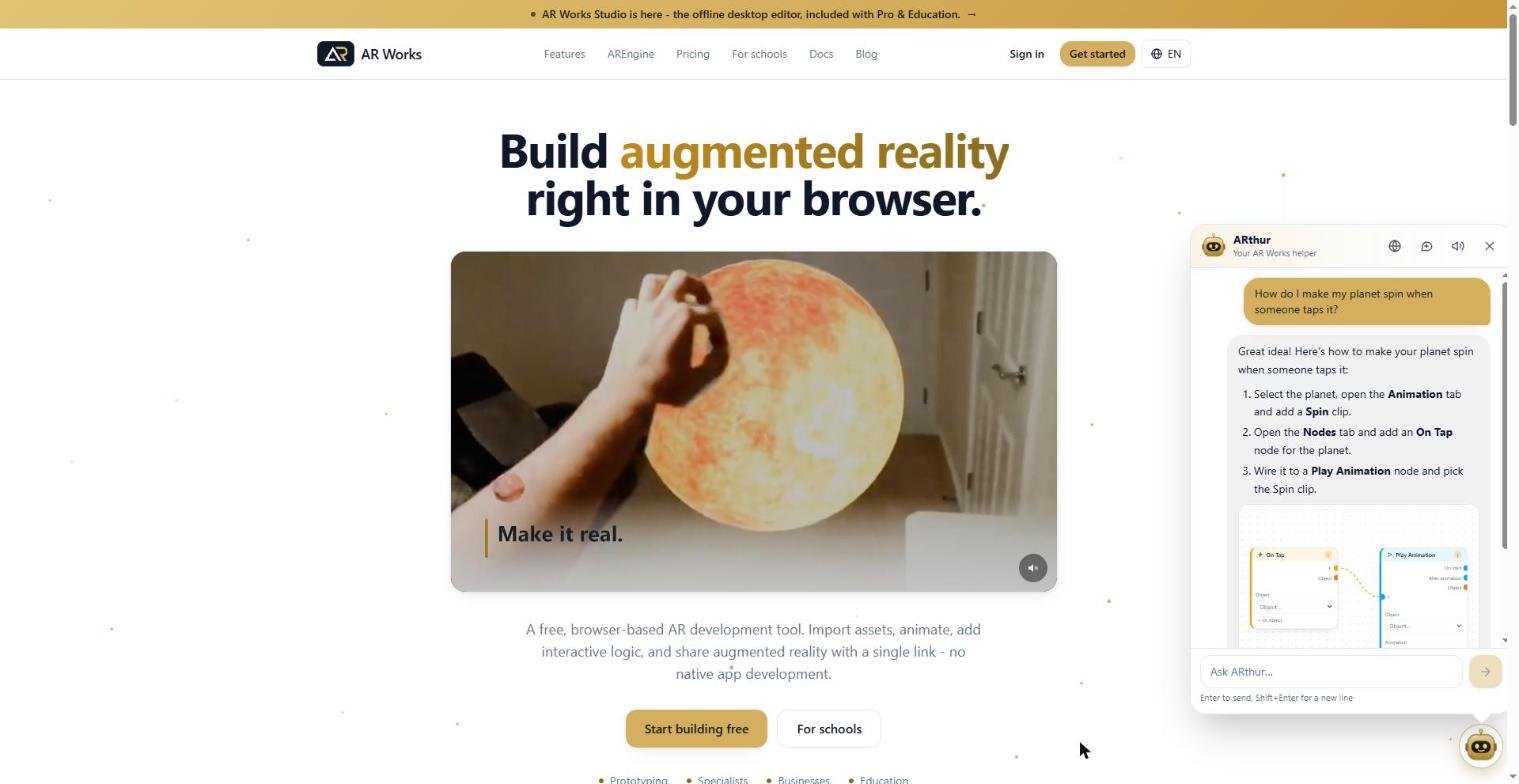
Teachers decide whether their students can use ARthur, class by class, and can see what their students asked.
Works everywhere you share
Everything you build with the new nodes plays in the web viewer on any phone, and in the AREngine app from version 0.1.9.
As always, the logic docs go through every node, input and output in detail, in all 13 languages. We would love to see what you build.
Try AR Works free
Build your first augmented reality experience in the browser - no code, no app installs.